
Before you start
Choose the document type whose PDF you want to adjust. TranzERP provides preset templates for quotes, sales orders, invoices, purchase documents and other transactions. This guide uses an invoice as the example.
You can adjust a preset’s appearance and the information shown through its available settings. You cannot customise or redesign the entire PDF template here. Work through the tabs you need, then save and review the result.
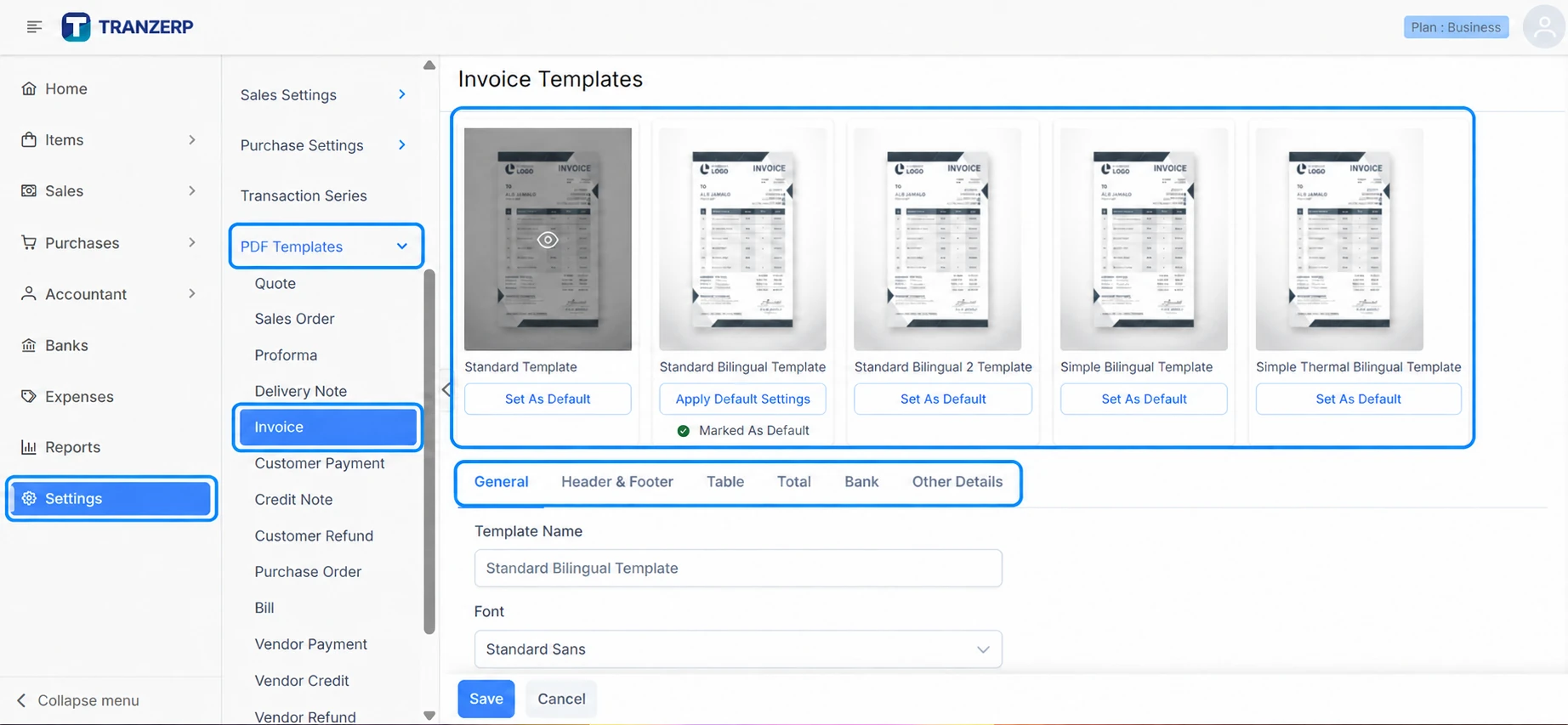
Open PDF templates and set a default
Open the document’s templates. Go to Settings → PDF Templates and select Invoice. For another document, select its entry in the same menu, such as Quote, Sales Order, Delivery Note, Purchase Order or Bill. This walkthrough uses Invoice as the example; the available settings depend on the document and template.
Set your preferred template as default. The invoice page shows Standard Template, Standard Bilingual Template, Standard Bilingual 2 Template, Simple Bilingual Template and Simple Thermal Bilingual Template. Click Set As Default on your preferred option. Marked As Default identifies the current default.
Adjust the available settings. Use General, Header & Footer, Table, Total, Bank and Other Details to adjust the selected template’s appearance and displayed sections. The overall PDF template cannot be redesigned here; changes stay within the options provided by the preset.
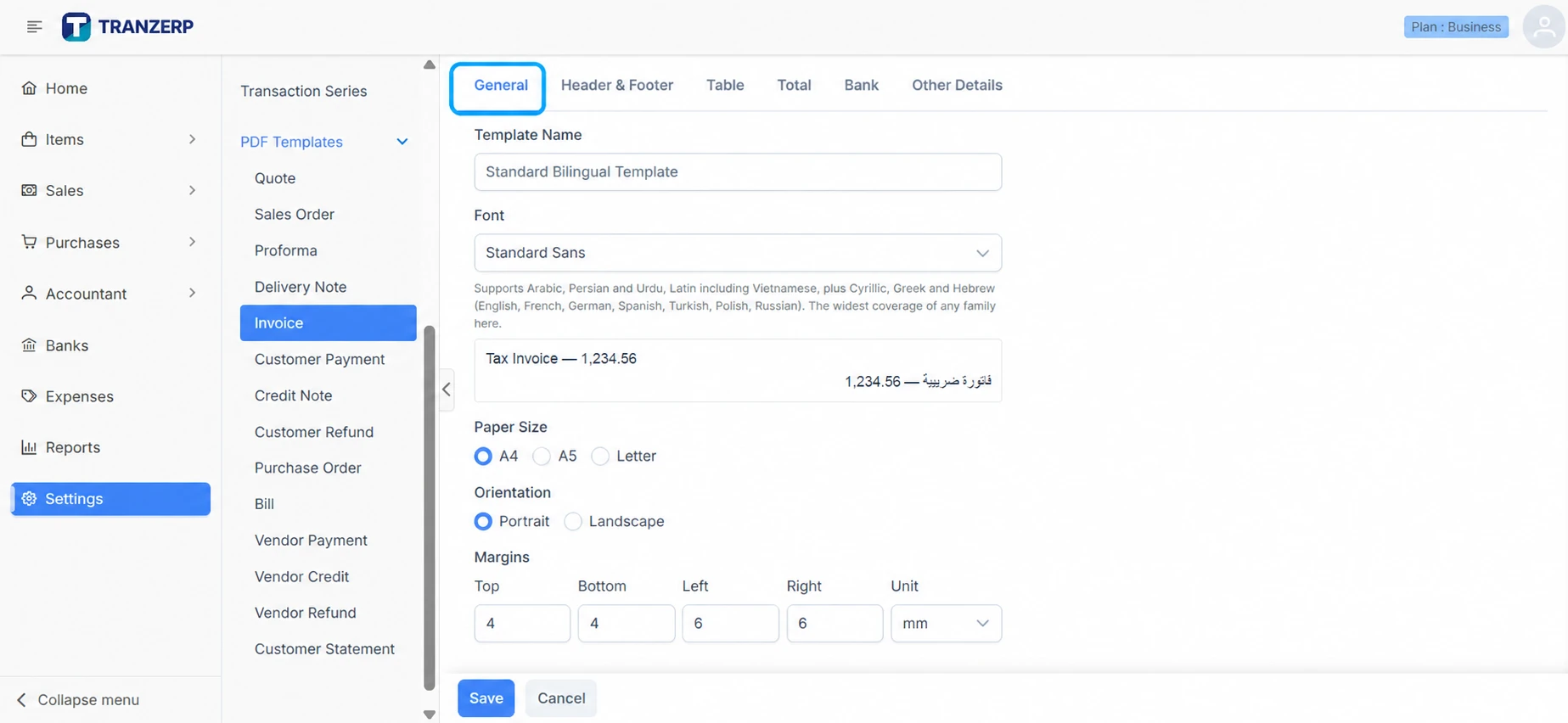
General: fonts and page settings
Template Name. This identifies the template you are adjusting. The example uses Standard Bilingual Template.
Font and preview. Choose a font that supports the languages in your documents. The text beneath the selector describes its language support. The sample “Tax Invoice — 1,234.56” and its Arabic equivalent show how text and numbers look in the chosen font.
Paper Size and Orientation. Select A4, A5 or Letter. Use Portrait for a vertical page or Landscape for a horizontal page.
Margins and Unit. Set the space at the Top, Bottom, Left and Right edges of the page. Choose px (pixels), in (inches), cm (centimetres) or mm (millimetres), then enter the margins in that unit. The screenshot uses 4 mm at the top and bottom and 6 mm at the left and right.
View all 13 fonts and their language support
| Font | Language support |
|---|---|
| Standard Sans | Arabic, Persian and Urdu; Latin including Vietnamese; Cyrillic, Greek and Hebrew. Includes English, French, German, Spanish, Turkish, Polish and Russian. The widest coverage of these font families. |
| IBM Plex Sans Arabic | Arabic, Persian and Urdu; Western European Latin, including English, French, German and Spanish. |
| Noto Sans Arabic | Arabic, Persian and Urdu; Western and Central European Latin, including English, French, German, Spanish, Turkish and Polish. |
| Cairo | Arabic, Persian and Urdu; Western and Central European Latin, including English, French, German, Spanish, Turkish and Polish. |
| Almarai | Arabic, Persian and Urdu, plus English, German and Spanish. |
| Tajawal | Arabic; Western European Latin, including English, French, German and Spanish. |
| Readex Pro | Arabic; Western European, Central European and Vietnamese Latin, including English, French, German, Spanish, Turkish, Polish and Vietnamese. |
| Noto Naskh Arabic | Arabic, Persian and Urdu; Western and Central European Latin, including English, French, German, Spanish, Turkish and Polish. |
| Amiri | Arabic, Persian and Urdu; Western and Central European Latin, including English, French, German, Spanish, Turkish and Polish. |
| Open Sans | Latin, Cyrillic, Greek and Hebrew, including English, French, German, Spanish, Turkish, Polish and Russian. |
| DejaVu Sans | Arabic and Persian; Latin including Vietnamese; Cyrillic, Greek and Hebrew. |
| Arimo | Latin, Cyrillic, Greek, Hebrew and Vietnamese, including English, French, German, Spanish, Turkish, Polish and Russian. Metrically identical to Arial. |
| Roboto | Latin, Cyrillic and Greek, including English, French, German, Spanish, Turkish, Polish and Russian. |
Use the sample beneath the Font selector to compare the appearance of text and numbers. Selecting a font changes their appearance; it does not translate your document’s wording.
Header & Footer
Header Type and Footer Type. Each selector offers Text, Image and Preprint. Choose the option that matches how you want the header or footer prepared. Preprint is for use with preprinted stationery. The screenshot uses Text for both.
Header appearance. Use Show Company Logo to control whether the logo appears. Set the Primary Text Alignment and Secondary Text Alignment to left, centre or right using the alignment buttons.
Footer page numbers. Use Show Page Number to display page numbering. Choose its format, such as Page 1/1, and adjust the Page Number Alignment and Page Number Font Size. The example uses an 8 pt font.
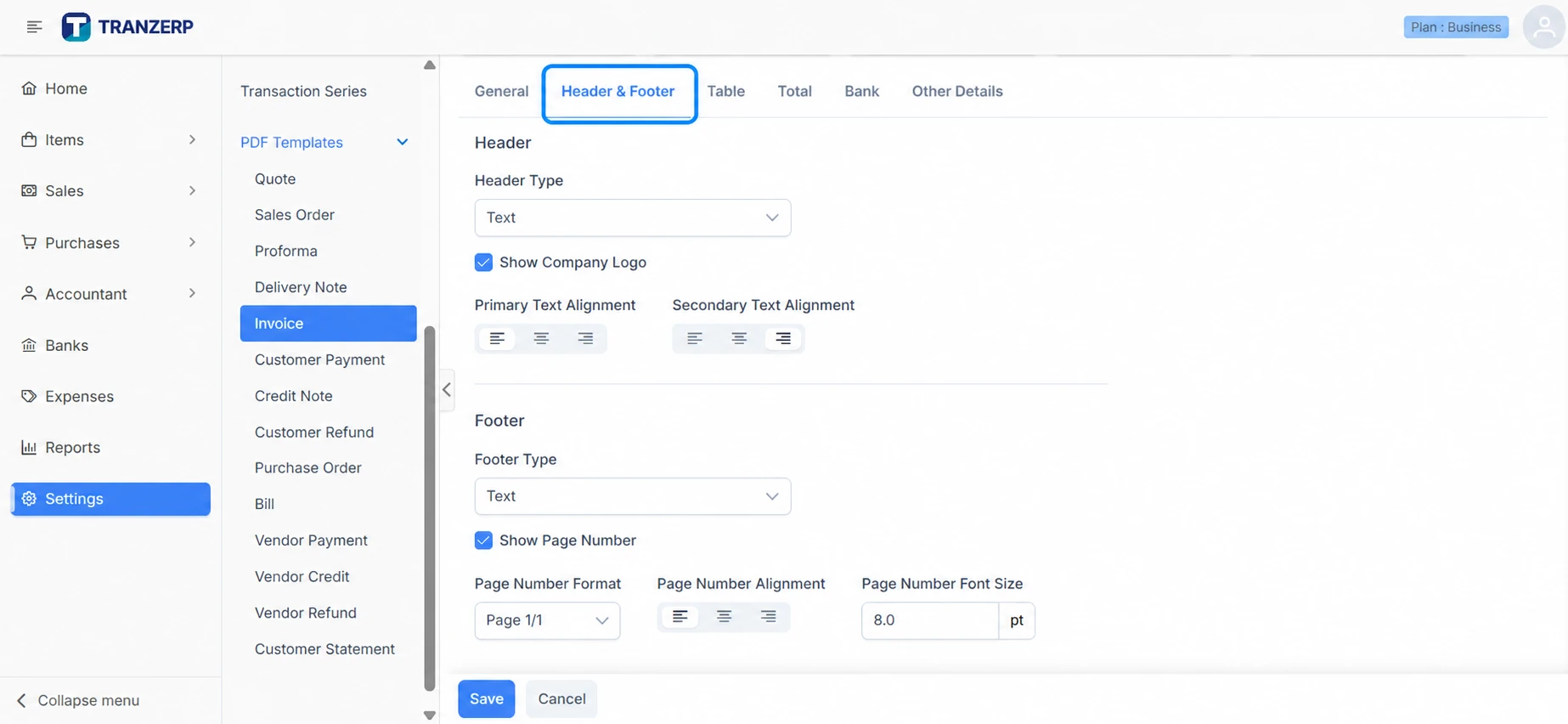
Table: Columns
Select the columns to display. The Table tab has Columns and Layout subtabs. In Columns, use each checkbox to show or hide an available column, such as Serial No, Code, Quantity, Measuring Unit, Price, Discount or Taxable Amount.
Set labels and widths. Edit Label and Secondary Label to control the headings used in the PDF, including a second language where needed. Width (%) sets the share of table space assigned to each column; allow more space for longer item descriptions.
Item and quantity details. For Item & Description, use Show Item and Show Description to control the content shown. Add Unit to Quantity lets you include the unit alongside the quantity.
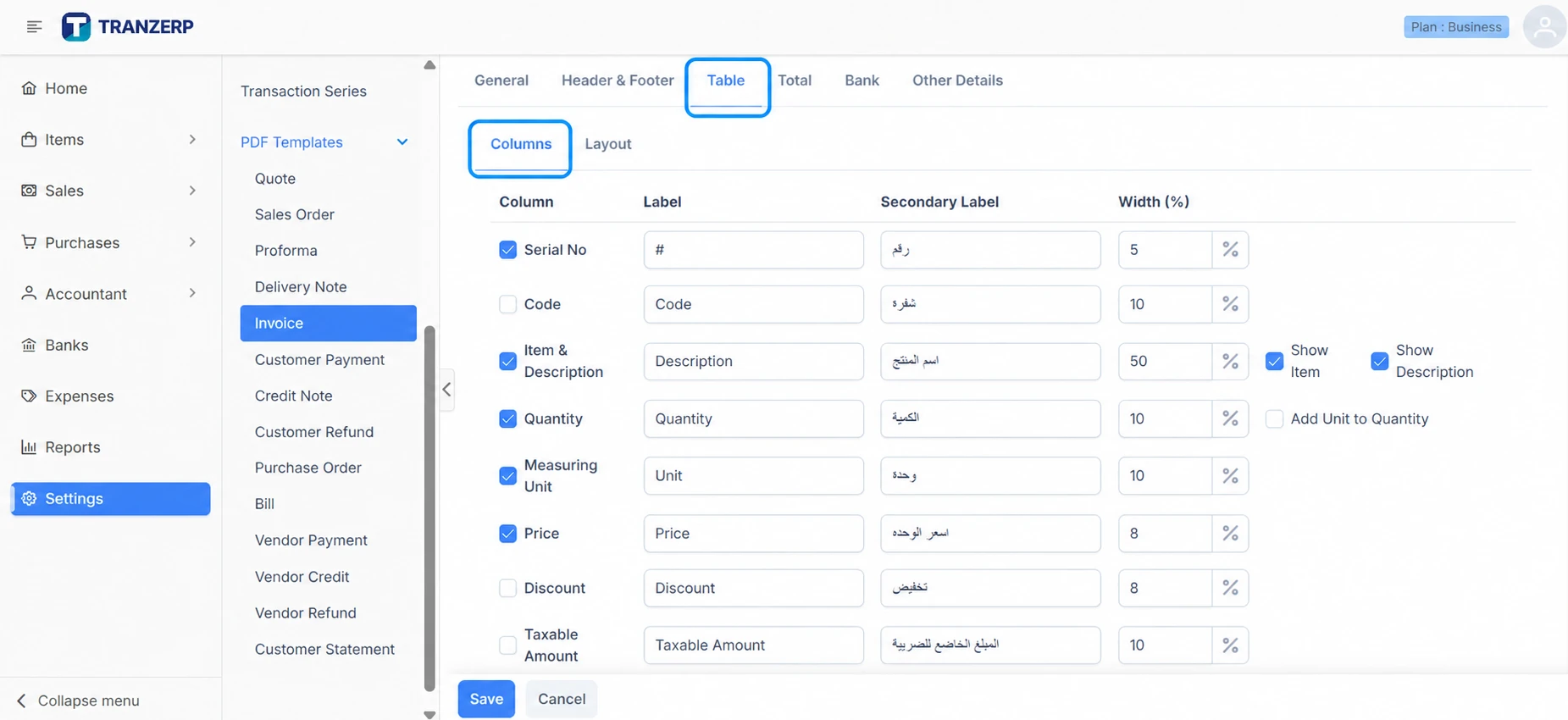
Table: Layout
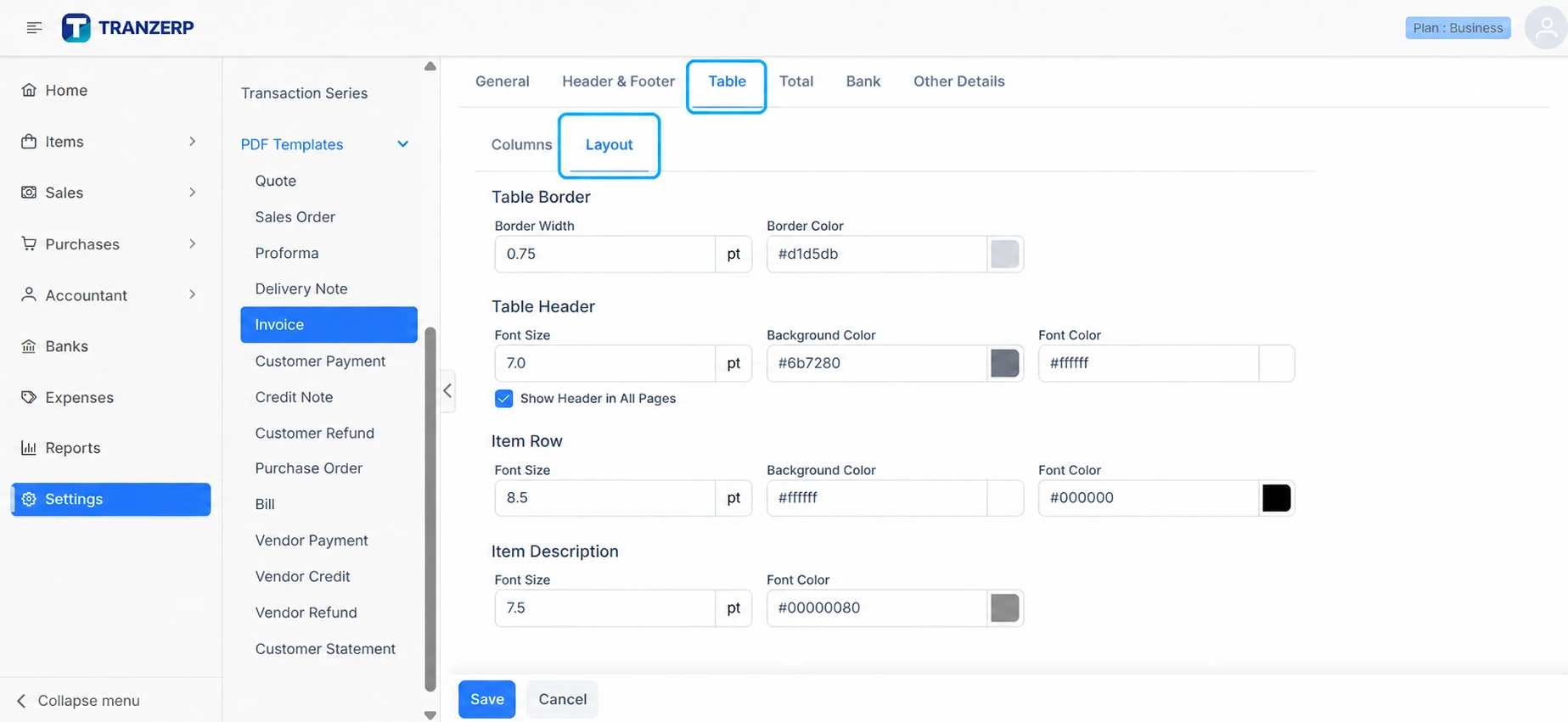
Table Border and Table Header. Set the border width and colour. For the table header, adjust the font size, background colour and font colour. Show Header in All Pages repeats the column headings on each page of a longer PDF.
Item Row and Item Description. Set the item row’s font size, background colour and font colour. Adjust the item description’s font size and colour separately to keep longer descriptions easy to read.
Total: Labels
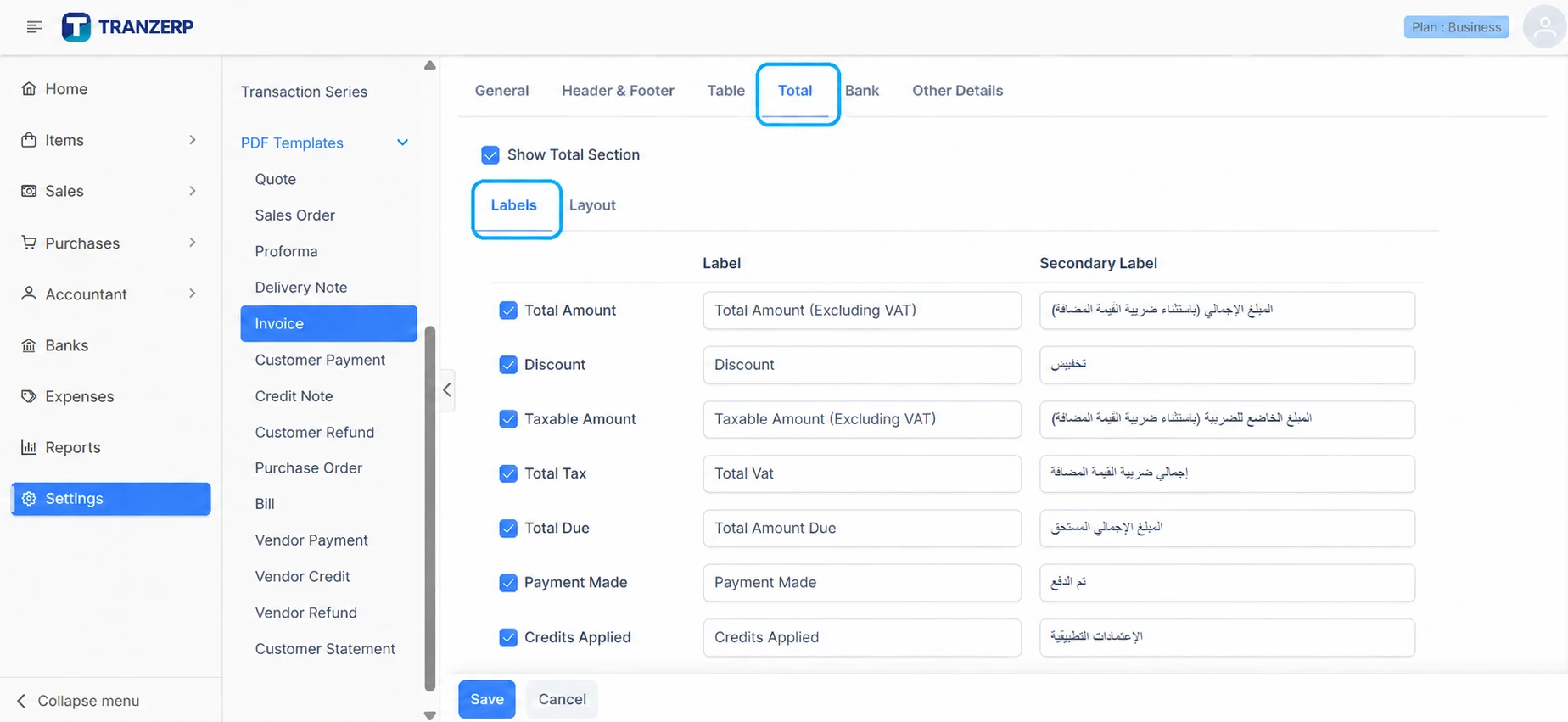
Show the totals section. The Total tab has Labels and Layout subtabs. Use Show Total Section to control the section’s visibility in the PDF.
Choose the displayed rows and labels. In Labels, use the checkboxes and edit Label and Secondary Label for the available totals. The example includes Total Amount, Discount, Taxable Amount, Total Tax, Total Due, Payment Made and Credits Applied. These controls affect how the amounts are presented in the PDF.
Total: Layout
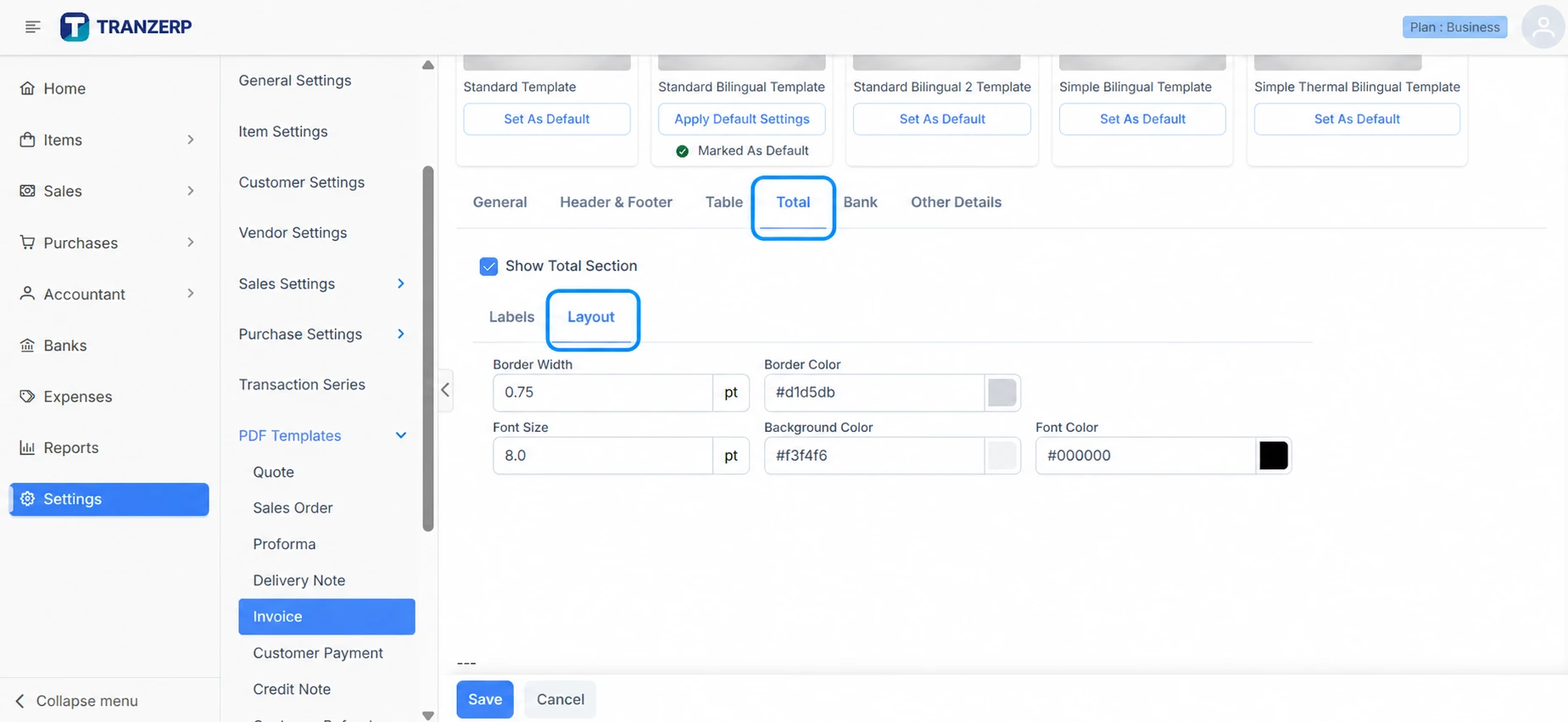
Style the totals area. Set Border Width, Border Color, Font Size, Background Color and Font Color. The screenshot shows a 0.75 pt border, an 8 pt font and a light background.
Keep the amounts readable. Choose a font colour that stands out against the background, and review the totals in the finished PDF after saving.
Bank: Labels
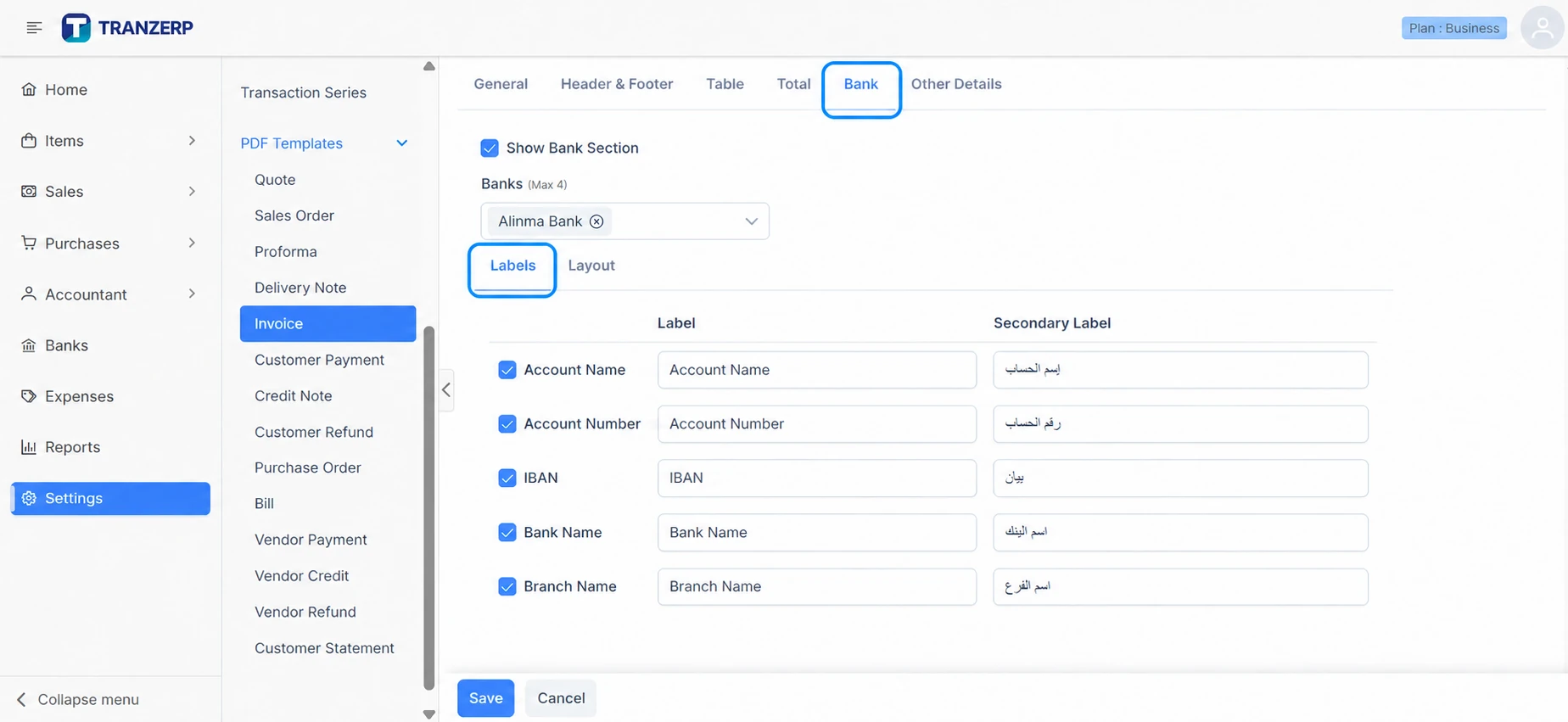
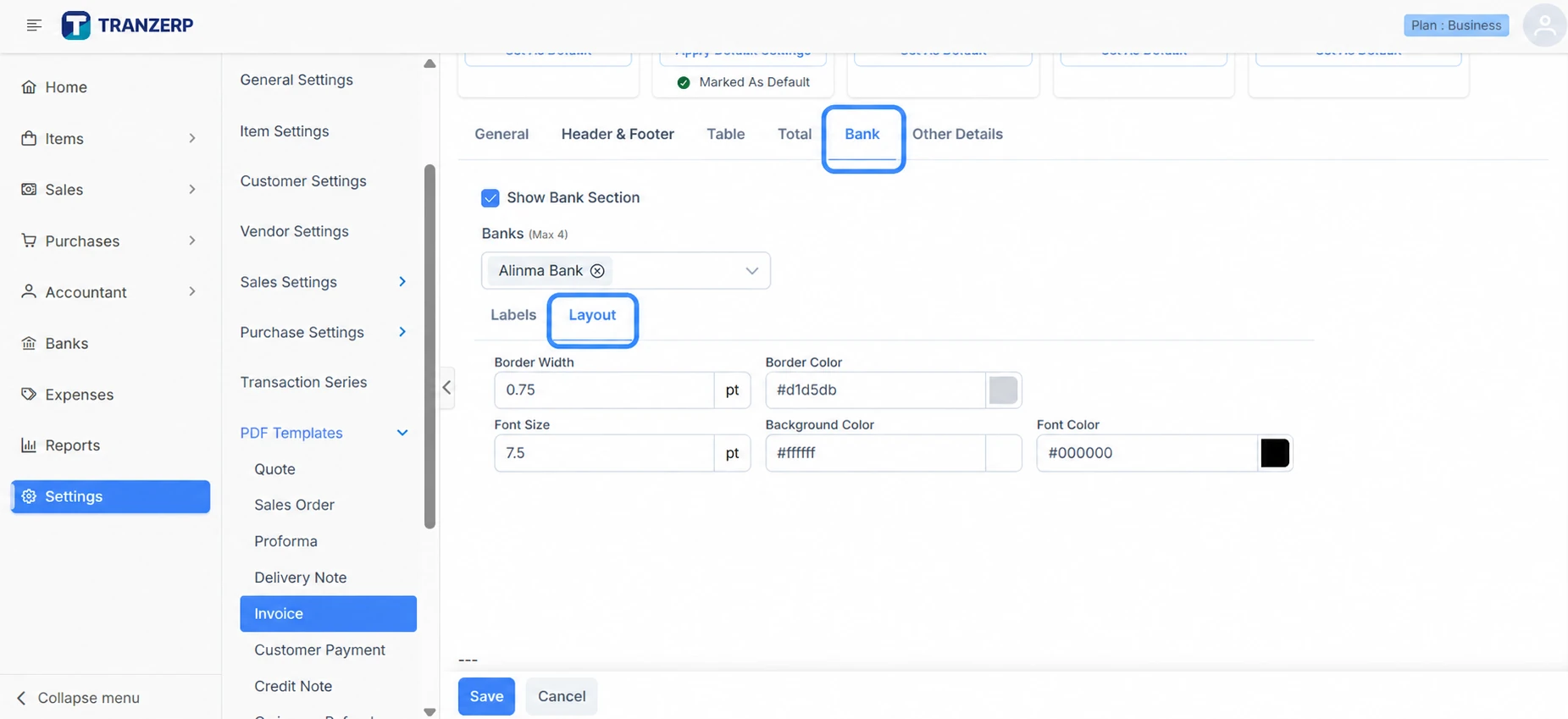
Choose the banks to show. The Bank tab has Labels and Layout subtabs. Enable Show Bank Section and select the banks to include. The selector allows up to four banks; the example selects Alinma Bank.
Control the bank details and labels. In Labels, use the checkboxes to show or hide Account Name, Account Number, IBAN, Bank Name and Branch Name. Edit Label and Secondary Label for the wording and second language you want displayed.
Bank: Layout
Adjust the bank section’s appearance. Set Border Width, Border Color, Font Size, Background Color and Font Color. The screenshot uses a 7.5 pt font with black text on a white background.
Review payment details. Check that the selected banks and the visible account details are the ones you want customers to see in the PDF.
Other Details: notes, terms and signatures
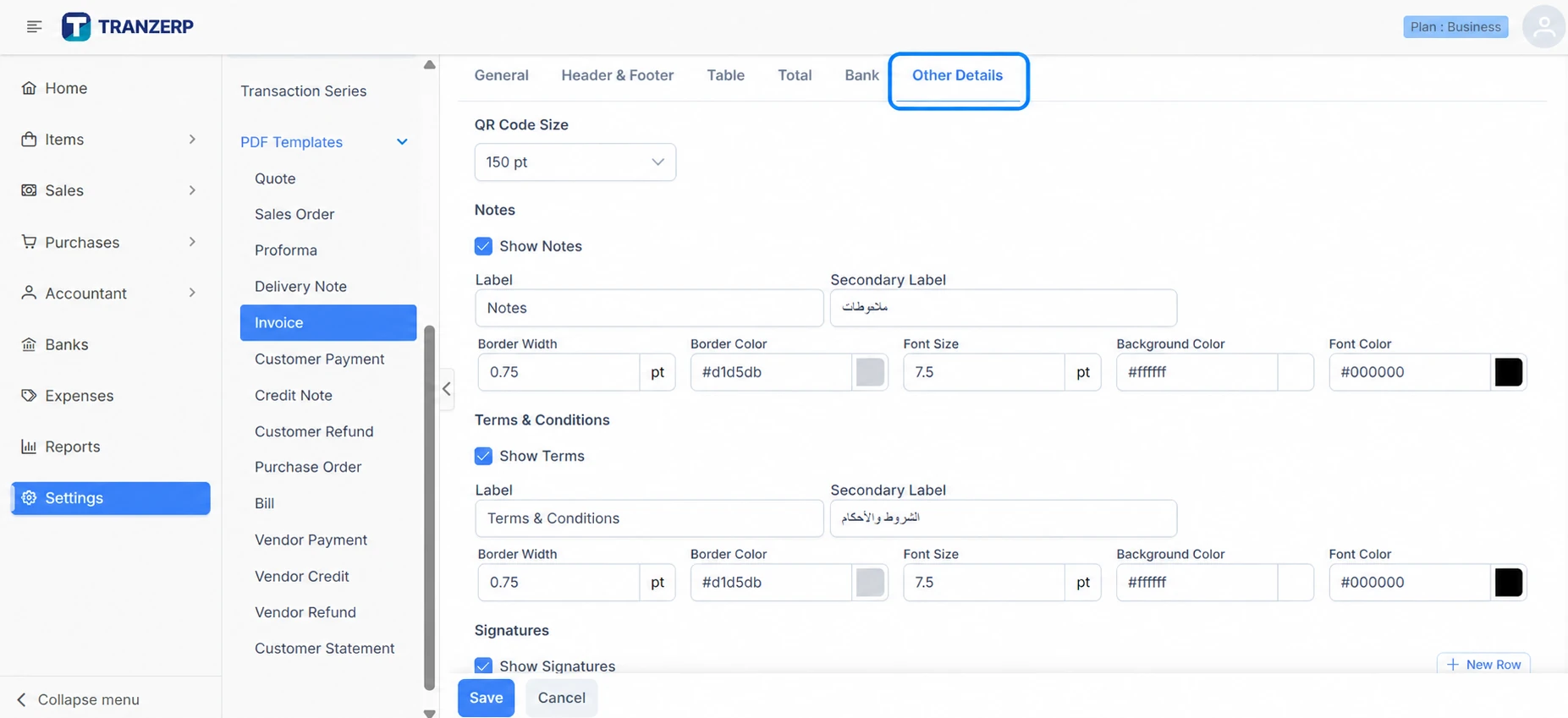
QR Code Size. Choose the size of the QR code from the selector. The example shows 150 pt.
Notes and Terms & Conditions. Use Show Notes and Show Terms to control whether these sections appear. For each section, adjust Label, Secondary Label, Border Width, Border Color, Font Size, Background Color and Font Color.
Signatures. Scroll down to Show Signatures. Use + New Row and + New Signature to arrange signature areas, and set Row Height. Each signature has a Type selector and a Label; the example uses Text with Customer Sign and Authorized Signatory labels. More opens additional settings, and the delete button removes a signature.
Save and review your PDF
After adjusting the tabs you need, click Save at the bottom of the settings page. Open a transaction of the same document type and use Print to review its appearance.
Check the languages, page edges, item columns, totals and any bank details, notes, terms or signatures you chose to show. For a document with several pages, also check the repeated table headings and page numbers. Return to the template settings if you need to make another adjustment.
FAQs
Can I use these settings for quotes or purchase documents?
Yes. Open Settings → PDF Templates and select the document type you need. Adjust its available settings separately. Invoice is the example used in this guide.
Can I create a completely different PDF design?
The page lets you choose a preset template and adjust its available appearance and display settings. It does not provide a way to redesign the entire PDF template.
How can I prepare a PDF with English and Arabic text?
Choose a bilingual preset and a font that supports both languages, such as Standard Sans. Review the primary and secondary labels in the relevant tabs, then check the finished PDF.
Where do I change the notes and terms wording?
Other Details controls whether notes and terms appear and how those sections look. To prepare text you can reuse in transactions, follow the reusable notes and terms guide.
Need help with your document’s appearance?
Talk to our team about the available PDF settings for your transaction documents.