
Before you start
Have your vendor’s invoice, purchase quantities and prices ready. Follow these steps to record a bill, check its totals and save a copy for your records.
Start a new bill
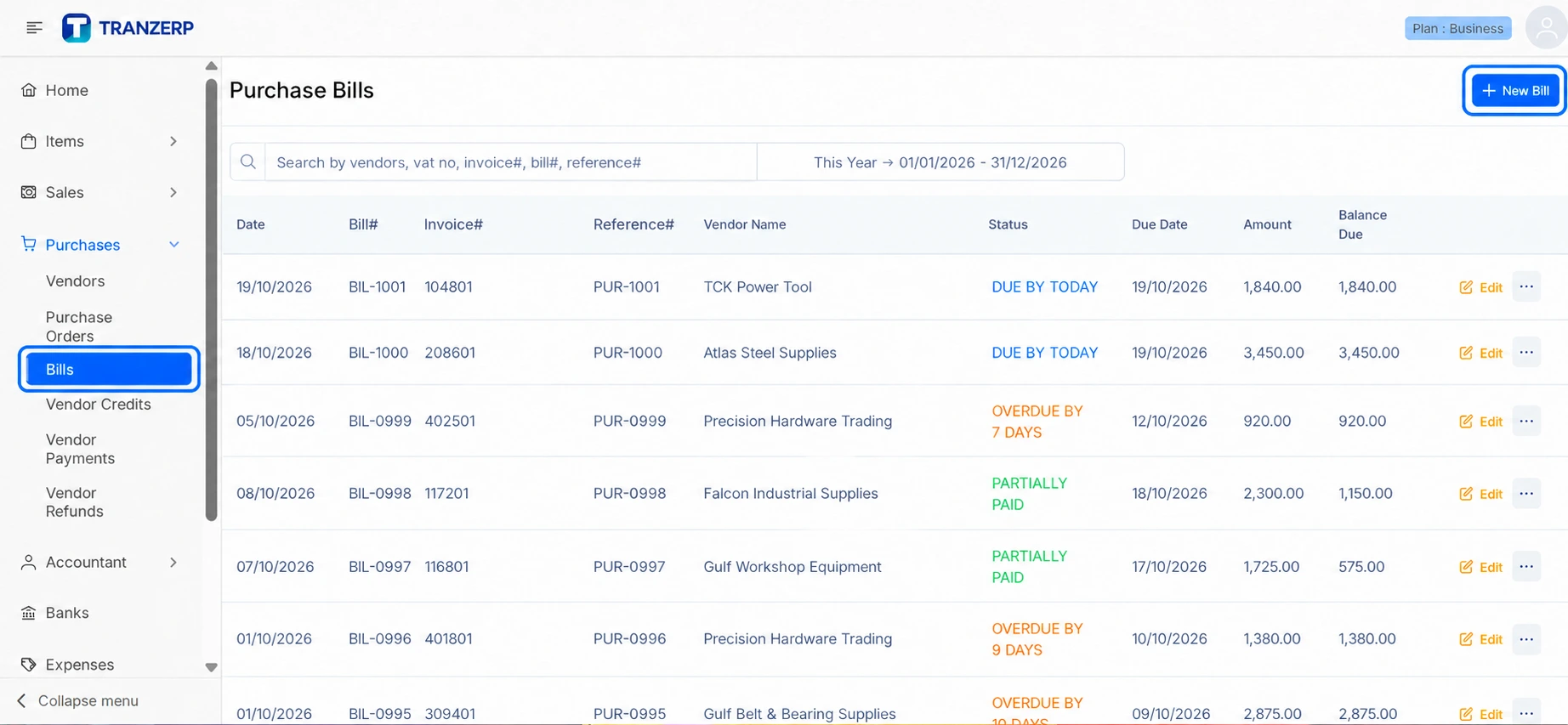
Open Bills. In the Purchases menu, click Bills to see the bills recorded for your vendors.
Create a new bill. Click + New Bill to open the bill form.
Add the vendor and bill details
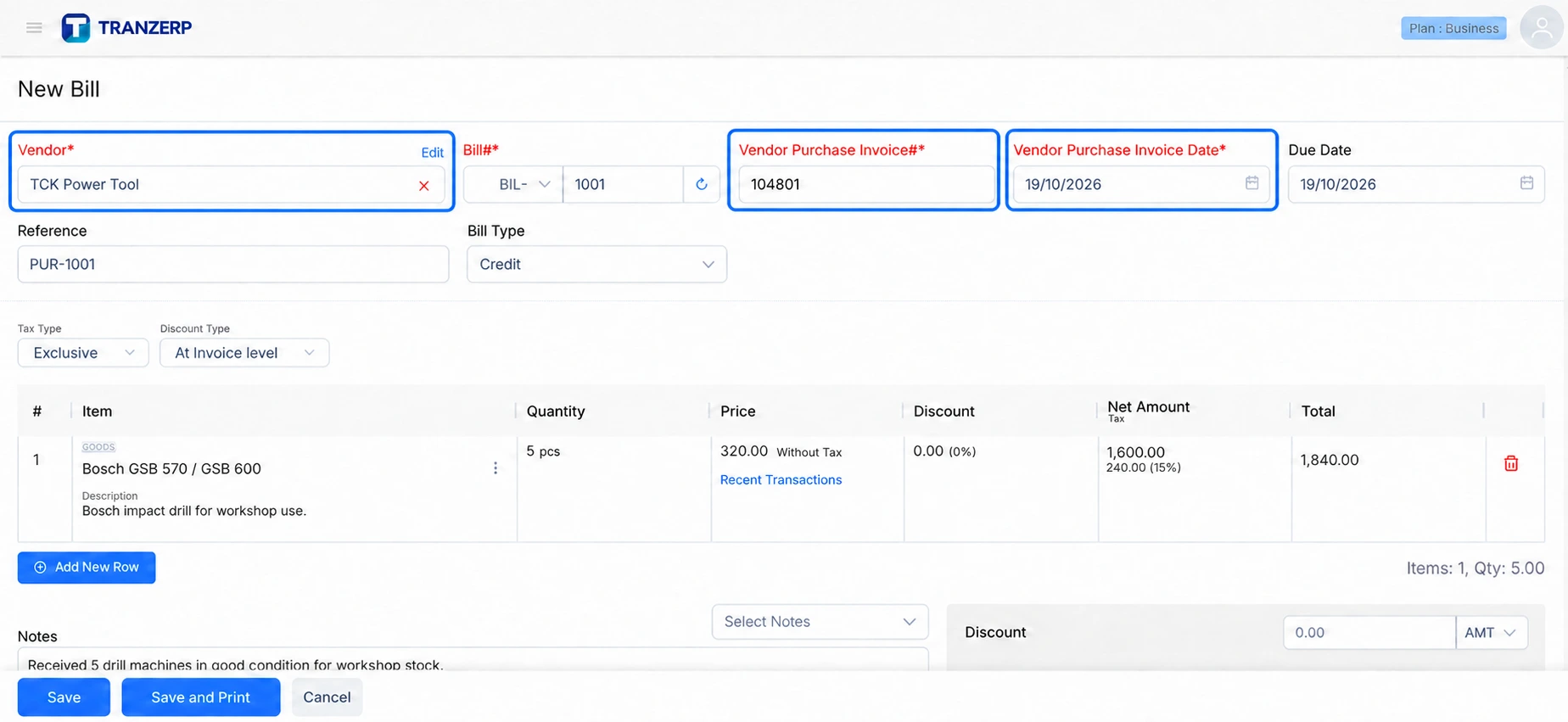
Choose your vendor. Select the vendor who supplied the items. This example uses TCK Power Tool.
Bill details. Bill# is generated automatically and cannot be entered manually. Enter the vendor’s purchase invoice number and invoice date. Check Due Date and Bill Type, and add a reference where needed. For a credit purchase, review the agreed payment due date before saving.
Add items and save
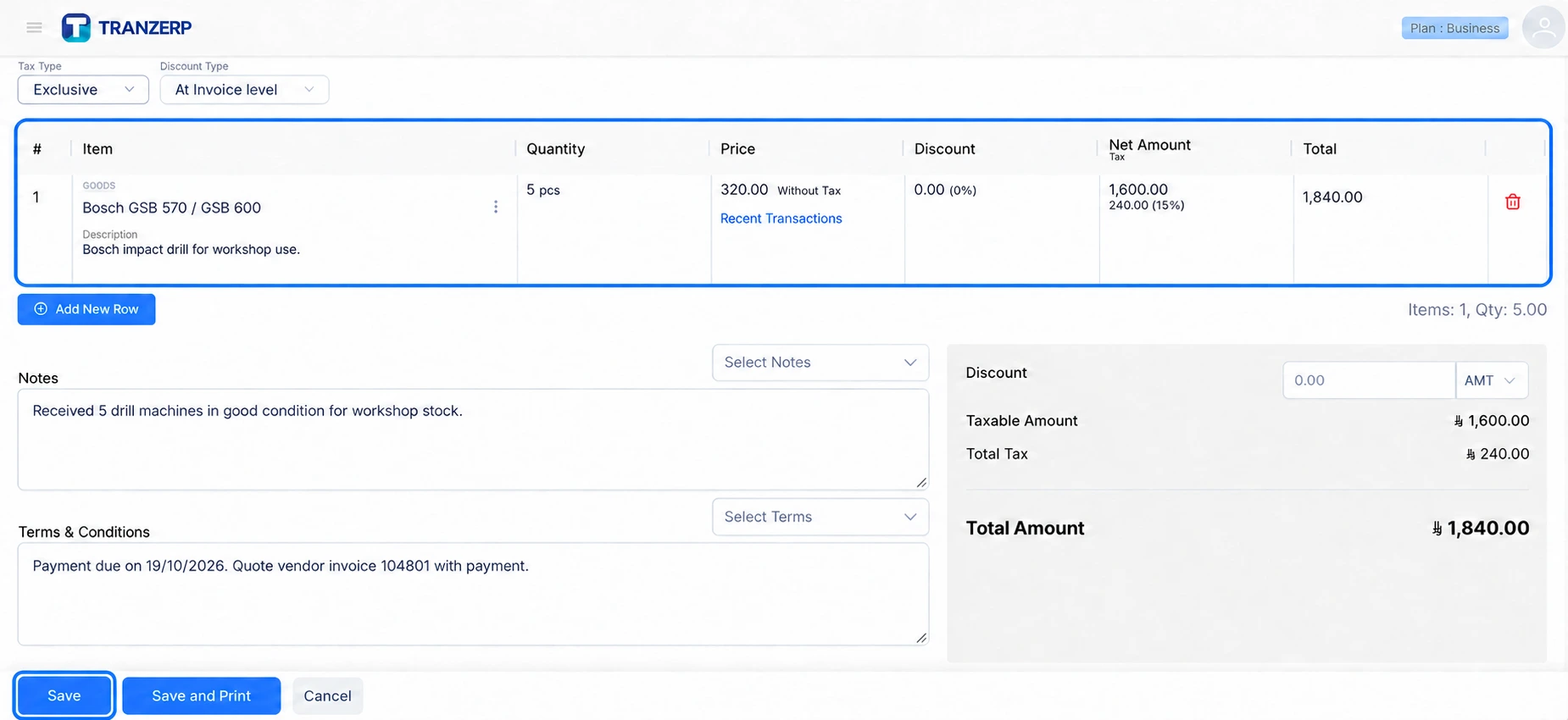
Add your items. Choose the items you are purchasing, then check the quantity and purchase price against the vendor’s invoice. Click Add New Row to include more items.
Review and save. Add notes, terms or discounts as needed. Check the tax settings and final amount, then click Save. Use Save and Print if you also need a printed copy.
Print or download a copy
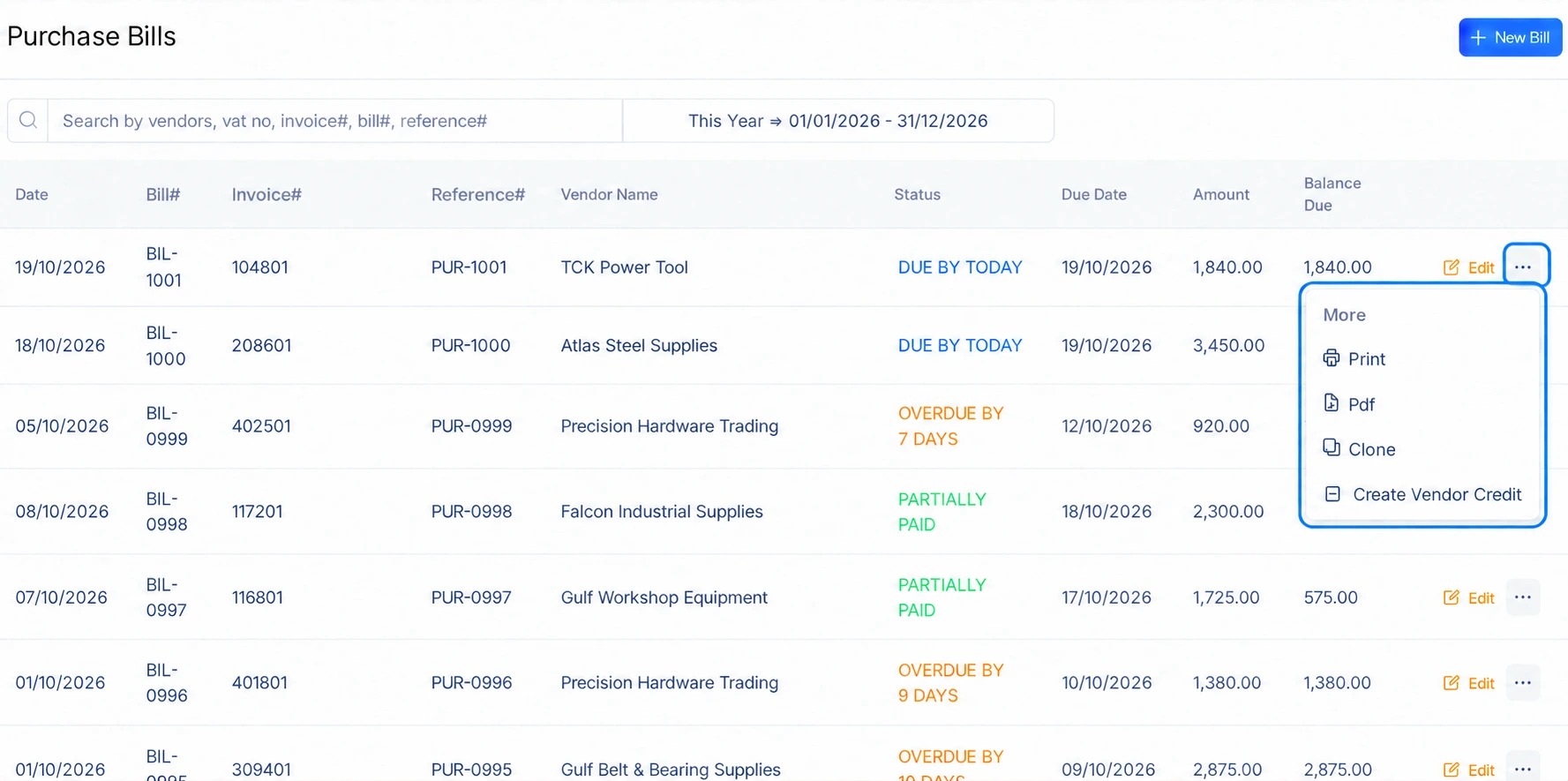
Open More options. Find your saved bill in the list and click its three-dot menu.
Choose your next action. Click Print to open the bill preview for printing, or Pdf to download a PDF copy directly to your device. The same menu also includes Clone and Create Vendor Credit.
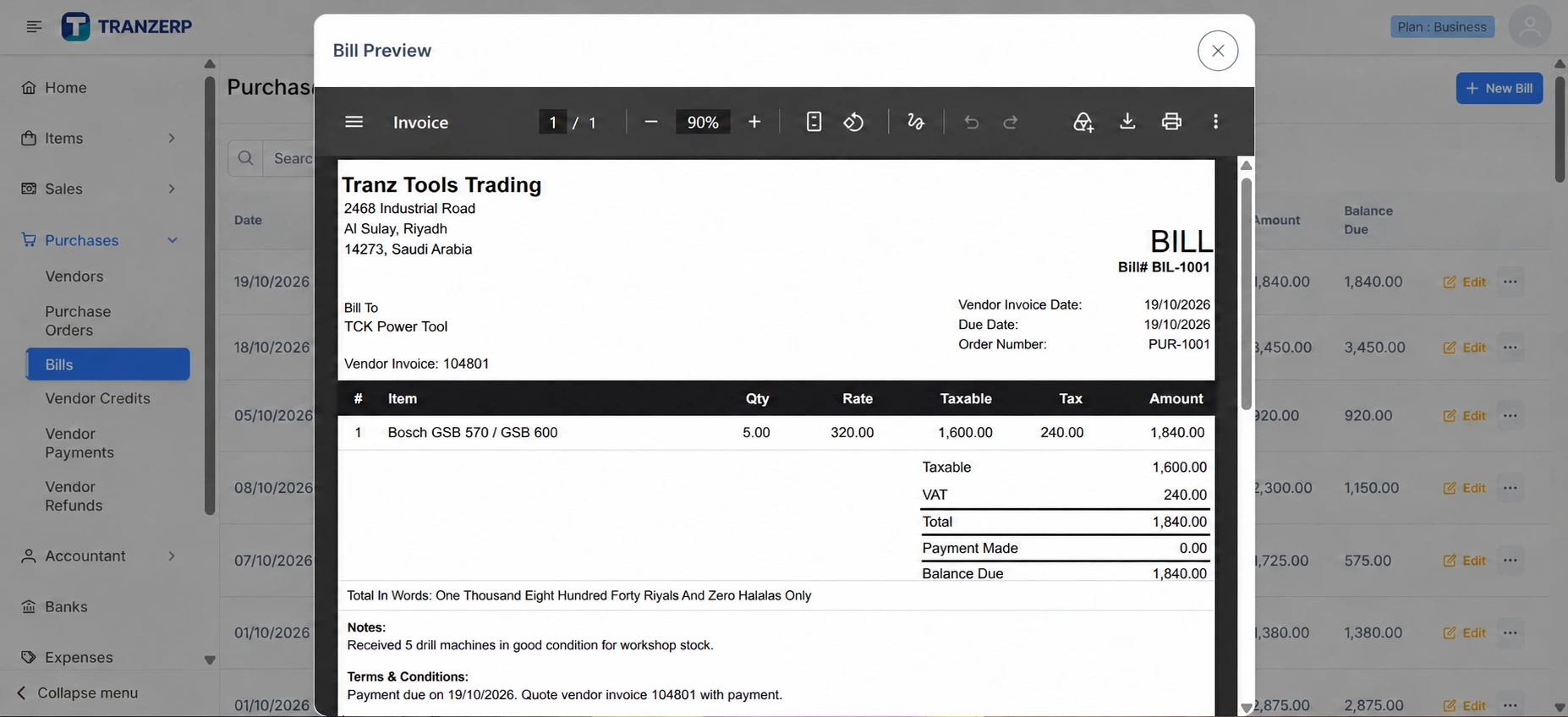
Preview your bill
Check your records. Review the business and vendor details, vendor invoice number, dates, quantities, amounts and payment terms in the preview.
Print or download. When everything looks right, use the preview toolbar to print the bill or download a copy for your purchase records.
FAQs
Is Bill# the same as the vendor’s invoice number?
No. TranzERP generates Bill# automatically; it cannot be entered manually. Enter the number from your vendor’s document in Vendor Purchase Invoice# so you can match the two records.
Can I record a bill now and pay the vendor later?
Yes. Choose Credit as the Bill Type and review the agreed Due Date before saving.
Can I reuse a bill for a repeat purchase?
Yes. Open the saved bill’s three-dot menu and click Clone. Review the vendor, vendor invoice number, dates, items and prices before saving the new bill.
What if I return some of the purchased items to my vendor?
Open the original bill’s three-dot menu and click Create Vendor Credit to record the credit for the returned items.
Need help recording a purchase?
Talk to our team about the bill details or steps you need help with.