
Bank
Add your business bank accounts to TranzERP to record money received from customers and payments made to vendors or for expenses. Select the relevant bank account when recording each transaction so you can track where money comes in and goes out.
Find a bank record
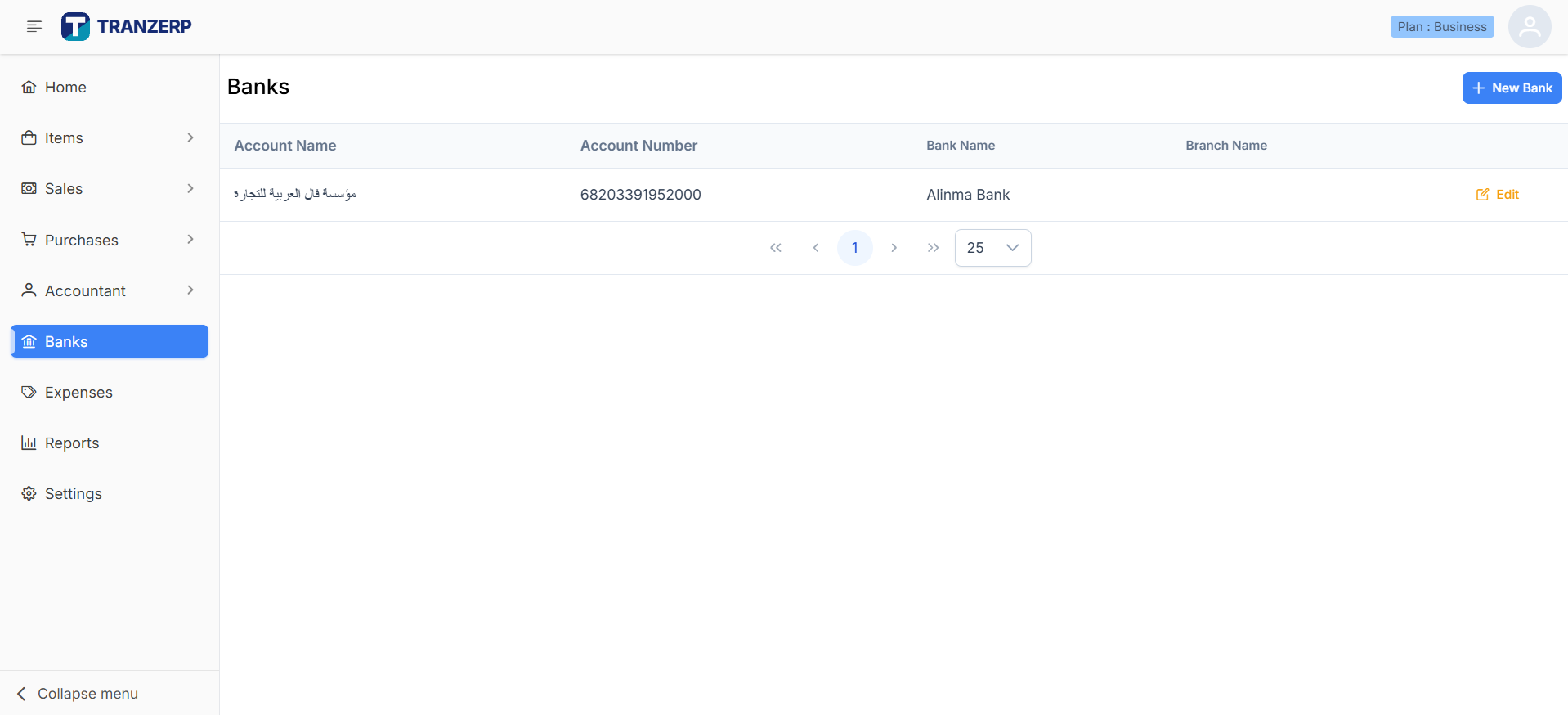
- Choose Banks in the TranzERP sidebar.
- Review Account Name, Account Number, Bank Name and Branch Name in the list.
- Use the page controls at the bottom if there are multiple pages. Check the account number as well as the name before choosing a record to edit.
Create a bank record
- Check the existing list to see whether the account is already recorded.
- Click New Bank.
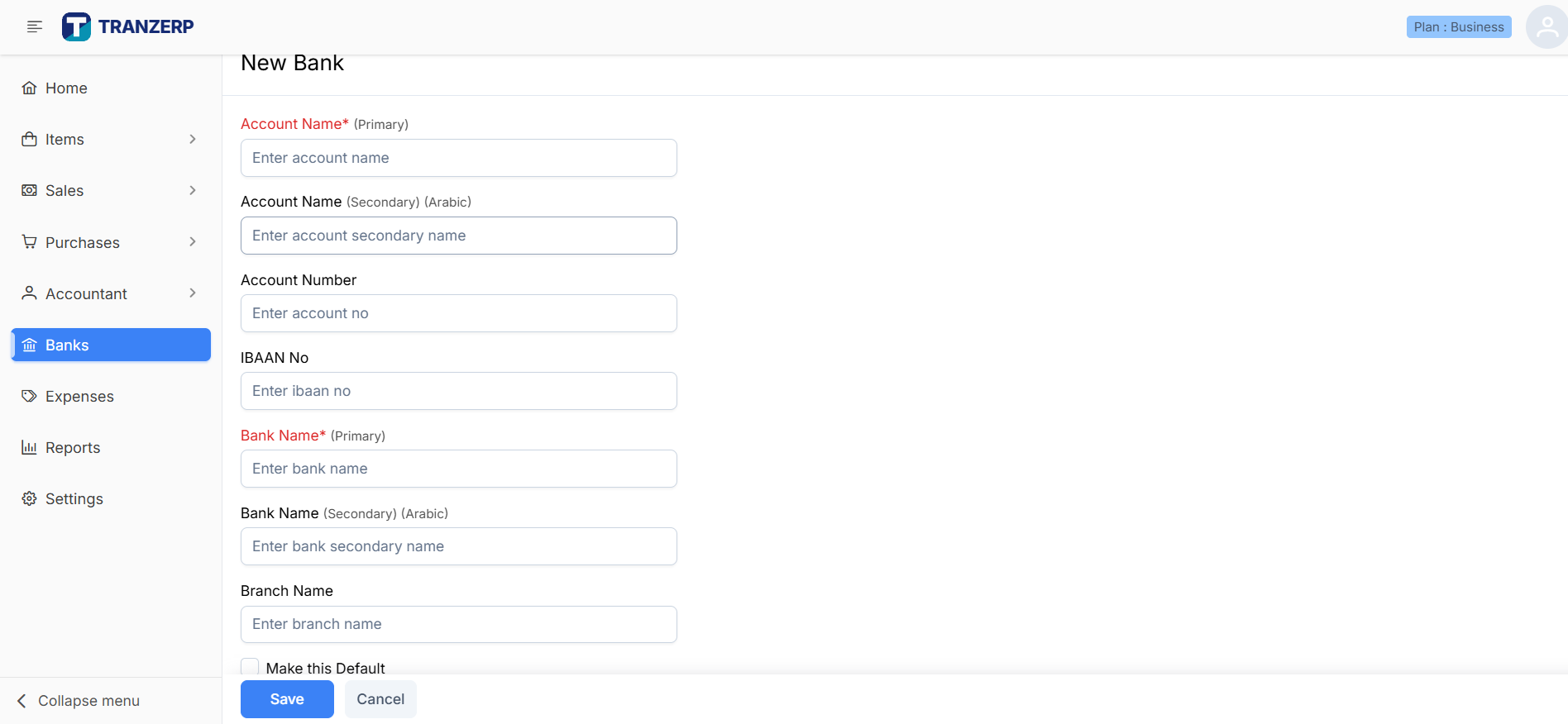
- Complete the required primary account and bank names, then enter the account number, IBAN, branch and Arabic names as needed.
- Choose whether to select Make this Default.
- Review the details against the bank’s account information and click Save. Click Cancel to leave without saving.
Understand the bank fields
An asterisk marks a required field.
- Account Name (Primary)*
- Required. Enter the name used to identify the bank account, such as the business account holder’s name. Check it against your bank records.
- Account Name (Secondary) (Arabic)
- Enter the Arabic version of the account name when needed. Keep it consistent with the primary name.
- Account Number
- Enter the bank account number exactly as provided by the bank, including any leading zeros. Check the full number before saving.
- IBAAN No
- Enter the IBAN supplied by the bank. The form labels this field IBAAN No. Check it against the bank’s official account details.
- Bank Name (Primary)*
- Required. Enter the name of the bank that holds the account.
- Bank Name (Secondary) (Arabic)
- Enter the Arabic bank name when needed.
- Branch Name
- Enter the branch associated with the account so your team can distinguish accounts at different branches.
For example, the same business may have accounts at two branches of one bank. Use the correct account number and branch details to distinguish the records.
Make this Default
Select Make this Default when you want this record to be your default bank, then save the form. Review this choice when setting up several bank records or changing your main account.
When recording a payment or expense, also check the bank account selected on that transaction. The Expenses guide explains Payment Mode and Paid Through.
Save or edit a bank record
After saving, return to the Banks list and compare the displayed name, account number, bank and branch with the details you entered.
- Find the correct row and click Edit.
- Update the relevant fields and review the default selection if needed.
- Click Save, then check the updated record in the list.
Troubleshooting
The bank record cannot be saved.
Check that Account Name (Primary) and Bank Name (Primary) are filled in. Review any validation message shown by the form.
Two records have similar names.
Compare the account numbers and branch names to identify the intended account before editing.
The account number or IBAN looks incorrect.
Open Edit and compare the complete value with the bank’s account details. Check for missing characters or leading zeros, then save the correction.
The list is missing a record.
Check the other pages using the controls below the list, and confirm that the new record was saved.
What should I enter in the two name fields?
Use Account Name for the account holder’s name and Bank Name for the bank that holds the account. Add the Arabic versions in the corresponding secondary fields when needed.
How do I make a bank record the default?
Open the bank record, select Make this Default and save. Review the account selected when recording a payment or expense.
I entered the details but they are missing from the list.
Save the form before returning to the list. Review the account number and bank name in the saved row. If you used Cancel, open New Bank and enter the details again.